
How to Turn Any JSON API Into a Live Wall
Point a wall at an endpoint you already have, map two fields, and it keeps itself current. Here's our live theme park wait times wall, built step by step.

Some of the data you want on a screen already sits behind an API.
Ride waits. A support queue. Stock on hand. The numbers change all day, and nobody looks at them because they live in a JSON response instead of on a wall.
So point a wall at the API. VitalWall calls it on a schedule, turns each record into an item, and keeps the wall current. You don't post a thing.
See it running on our live theme park demo, then build your own below.
The demo: live theme park wait times
Our theme park wall reads ride wait times from Queue-Times.com. Switch it between Magic Kingdom and Epic Universe. Each ride is a card with its photo, its name and the wait in minutes, colored from green for a short line to red for an hour or more. Nobody sends events to this wall. It's the same feature you'd use on your own API.
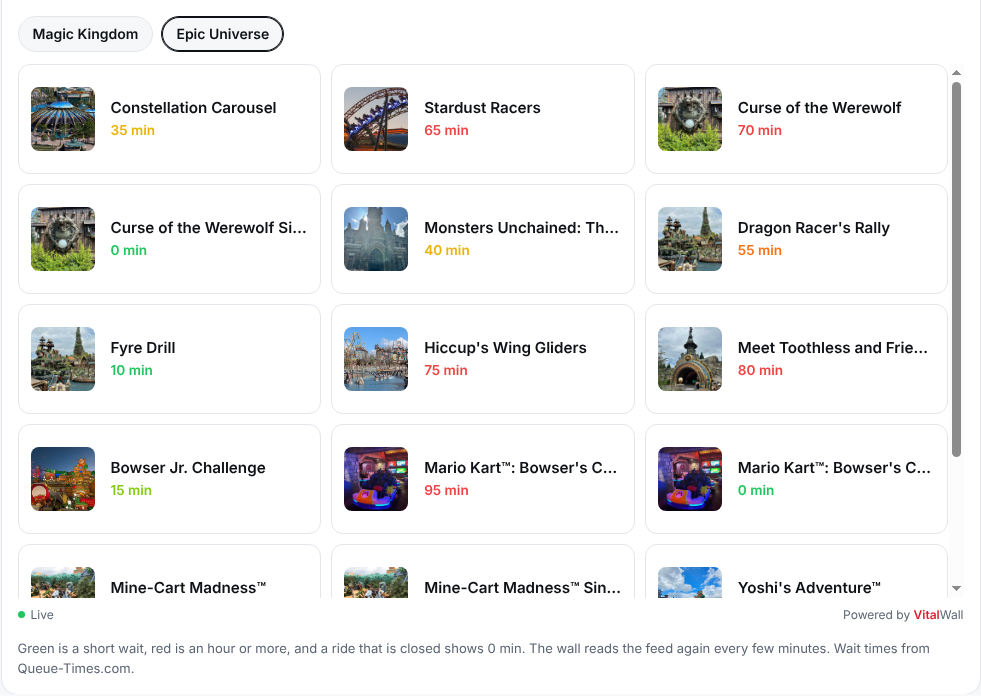
That's Epic Universe at 3:22 on a Sunday afternoon in November: Meet Toothless and Friends at 80 minutes, Mario Kart at 95, Fyre Drill at 10. Single rider lines the feed lists at 0 show as 0 min, in green.
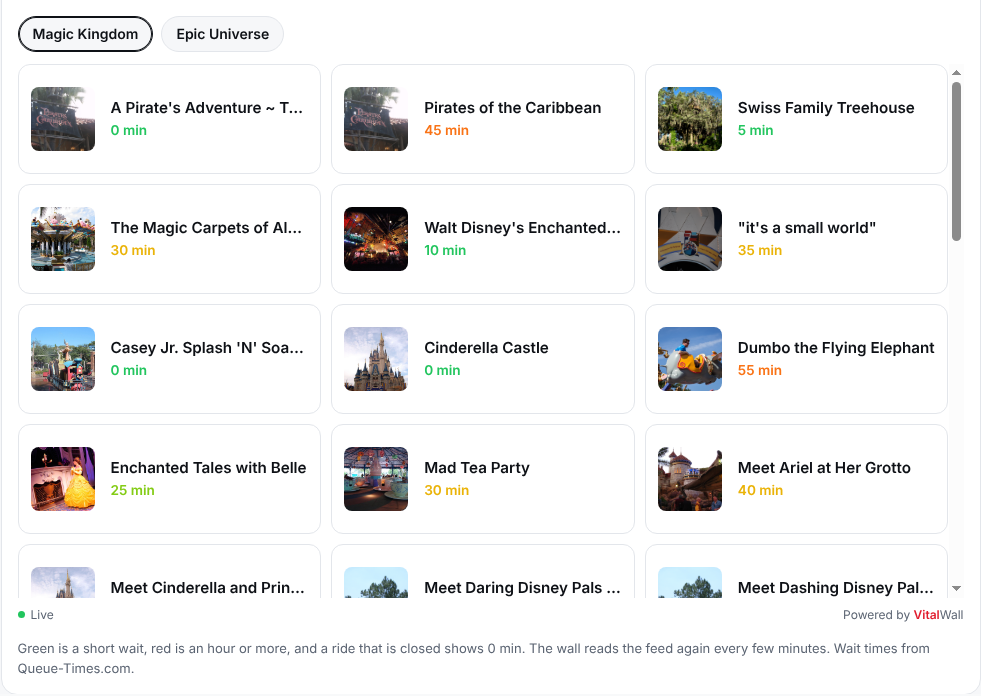
Flip to Magic Kingdom and the same wall setup reads a different park's feed.
What the API sends back
Here's part of the Queue-Times response for Epic Universe from that same afternoon, cut down to two areas and the fields we use. The real one lists every area in the park.
{
  "lands": [
    {
      "id": 976,
      "name": "Celestial Park",
      "rides": [
        { "id": 14688, "name": "Constellation Carousel", "is_open": true, "wait_time": 35 },
        { "id": 14690, "name": "Stardust Racers", "is_open": true, "wait_time": 65 }
      ]
    },
    {
      "id": 975,
      "name": "Dark Universe",
      "rides": [
        { "id": 14692, "name": "Curse of the Werewolf", "is_open": true, "wait_time": 70 },
        { "id": 14694, "name": "Monsters Unchained: The Frankenstein Experiment", "is_open": true, "wait_time": 40 }
      ]
    }
  ]
}
Nothing in there was made for a wall. It's a plain JSON feed, and that's the point.
How a response becomes cards
Each refresh, our servers run the same few steps.
- Fetch. We call the URL and read the JSON.
- Find the list. The Items Path says where the array sits. Here it's
lands. - Flatten nested lists. Queue-Times puts rides inside areas, so the Nested Items Path is
rides, and the Parent Label Fieldnamekeeps each area's name as the ride's group. - Pick the fields. The Label Field
namebecomes the text on each card. The Value Fieldwait_timebecomes its number. The ID Fieldidkeeps each ride's identity. - Draw each card. The Card template shows the label and the value, adds " min" after the number and colors it from a color scale.
Every other field, like is_open, is ignored unless you map it. That's why a closed ride shows 0 min: the feed sends a wait of 0. Paths use dots for nested objects, like data.items or properties.place.
Build your own, step by step
You can copy our demo, then swap in your own API when it works.
1. Create a wall
In VitalWall, create a new wall and give it a name. Adding your website is optional at this point, but you'll need it to embed the wall later. Saving takes you to the wall's page.
2. Set how many items show
Open Wall Configuration and raise Display Limit to fit your list. It starts at 10 and goes up to 100, and only that many items show. A park has dozens of rides, so give it room.
3. Turn on the External API Data Source
Scroll down to External API Data Source and tick Enable. The wall now gets its items from an API instead of from events.
4. Point it at the API
To copy the demo, click the Queue-Times (Theme Parks) preset. It fills in the URL, the paths, the fields and the card template from the sections above. The preset's URL reads Magic Kingdom (parks/6). For Epic Universe, change the 6 to 334.
For your own API:
- API URL: the endpoint. It has to return JSON.
- HTTP Method: GET or POST.
- Headers: add any your API needs. For an API key, tick Secret and give it a name, and our support team sets the value so it stays on our servers.
- Items Path: where the list sits. Leave it empty if the response is the list itself.
- Nested Items Path and Parent Label Field: only for lists inside groups, like rides inside areas.
5. Map the fields
- Label Field: required. The name on each card.
- Value Field (numeric): the number on each card, and what the colors follow.
- Image URL Field: optional. If your API returns an image URL for each item, map it here and the card shows that picture.
- Group/Category Field, Subtitle Field and ID Field are optional too.
Queue-Times doesn't send pictures. The ride photos on our demo are ones we added on our side. A wall built from the preset shows a colored square with the wait in place of the photo, which reads just as well on a TV.
6. Pick the card template and colors
In Display Template, set Template Type to Card. The preset already does, with " min" as the Value Suffix. You can also set a Value Prefix, like $, and the number of Decimal Places.
The Color Scale colors each value by range. The preset's runs green under 15 minutes, lime to 30, yellow to 60, orange to 90 and red from 90 up. Our demo turns red at an hour. Change the ranges and colors to fit your numbers.
7. Test it
Click Test & Fetch Sample. We call the API once and show how many items came back, a few sample items, and the fields found in each one. Click a field to use it as the label. Secret headers aren't sent by the test.
8. Set the refresh interval and save
Drag Refresh Interval anywhere from 30 seconds to 10 minutes. The preset uses 5 minutes. Sort Items can keep the API's order or sort by value, highest or lowest first. Our demo keeps the API's order, so rides stay grouped by area. If your list is longer than your display limit, sort highest first so the biggest numbers make the wall. Click Save Changes, then View Wall.
Put it on your site
Add your site under Allowed Domains in Wall Configuration. The wall only loads on the domains you list there.
Then add the script once per page, and the wall where you want it to show:
<script type="module" src="https://vitalwall.com/v1/vitalwall.js"></script>
<vital-wall wall="YOUR_WALL_ID" layout="grid"></vital-wall>
Your wall's page gives you the same tag with your wall ID filled in. layout="grid" lays the cards out in columns, whatever layout the wall itself is set to. To make the cards wider or narrower, set the column width on the tag, like our demo's 240 pixels:
<vital-wall wall="YOUR_WALL_ID" layout="grid" style="--vw-column-min: 240px"></vital-wall>
All the API settings stay in the dashboard, and the embed code never changes when you edit them.
Where the fetch happens
VitalWall calls your API from our servers, never from the viewer's browser, so your endpoint and any secret header stay off the page.
- Only while someone's watching. We call the API while the wall is open somewhere: on a TV, on our site or in an embed.
- Cached between refreshes. A result is reused for about one refresh interval, so a thousand viewers make one request, not a thousand.
- Public endpoints only. Private, loopback and cloud metadata addresses are refused, and every redirect is checked again.
Prefer bubbles?
The same API wall can show as bubbles instead of cards. Pick Bubble View under Layout Style, or set layout="bubble" on the tag. Each bubble is sized by its number, and bubble walls draw their own way, so the Display Template doesn't apply. Tap a bubble and it grows into a chart of that item's last 6 hours, with the high and the low. We cover that in See the Last 6 Hours of Any Bubble on Your Wall.
What else fits
Anything that's a list of named things with a number for each works as a wall of cards:
- Queues: open tickets per team from your help desk's API.
- Fulfillment: orders waiting at each station or warehouse.
- Service health: response time per endpoint from a status API.
- Stock: units on hand per product.
If your API returns JSON with a label and a number for each item, the steps above are the whole setup.
Cards aren't the only look. Our live earthquake wall uses the same feature as a list, and Ticker, Treemap or Map? Picking the Right Live Wall Layout covers when to pick which.
Watch the waits move on the live theme park demo.
Want to see your own data move? Start free on VitalWall. No credit card needed.
Related Posts

See the Last 6 Hours of Any Bubble on Your Wall
Tap a bubble on a VitalWall bubble wall fed by an external API and it grows into a chart of its last 6 hours, with the high and the low. Here's how it works and how to set one up.

How to Build a Live Earthquake Feed From USGS
Point a VitalWall list wall at the USGS earthquake feed and every M4.5+ earthquake from the past day shows up on your site or TV, refreshed every minute.

How to Post to a Live Wall from Your Backend
Fire an event on our backend demo and watch it land on a live wall, then build your own: a post-only API token, one HTTPS call to post_item, and errors you can handle.